How to download Instagram Highlights (each in its own folder)
By the Kipzo team · Updated October 23, 2026
Highlights are the stories an account has pinned to its profile — often its best content, organized by topic. Here’s how to save them, either one at a time or all at once.
Before you start
Install the free Kipzo extension in Chrome (or Edge, Brave, Opera, Vivaldi) and log in to Instagram in that browser. You can save highlights from any account your Instagram account can view.
Save every highlight on a profile
- Open the profile on instagram.com.
- Click “Highlights” — it appears next to Download posts whenever the account has highlights.
- Kipzo saves every highlight, and the progress panel shows how far it got.
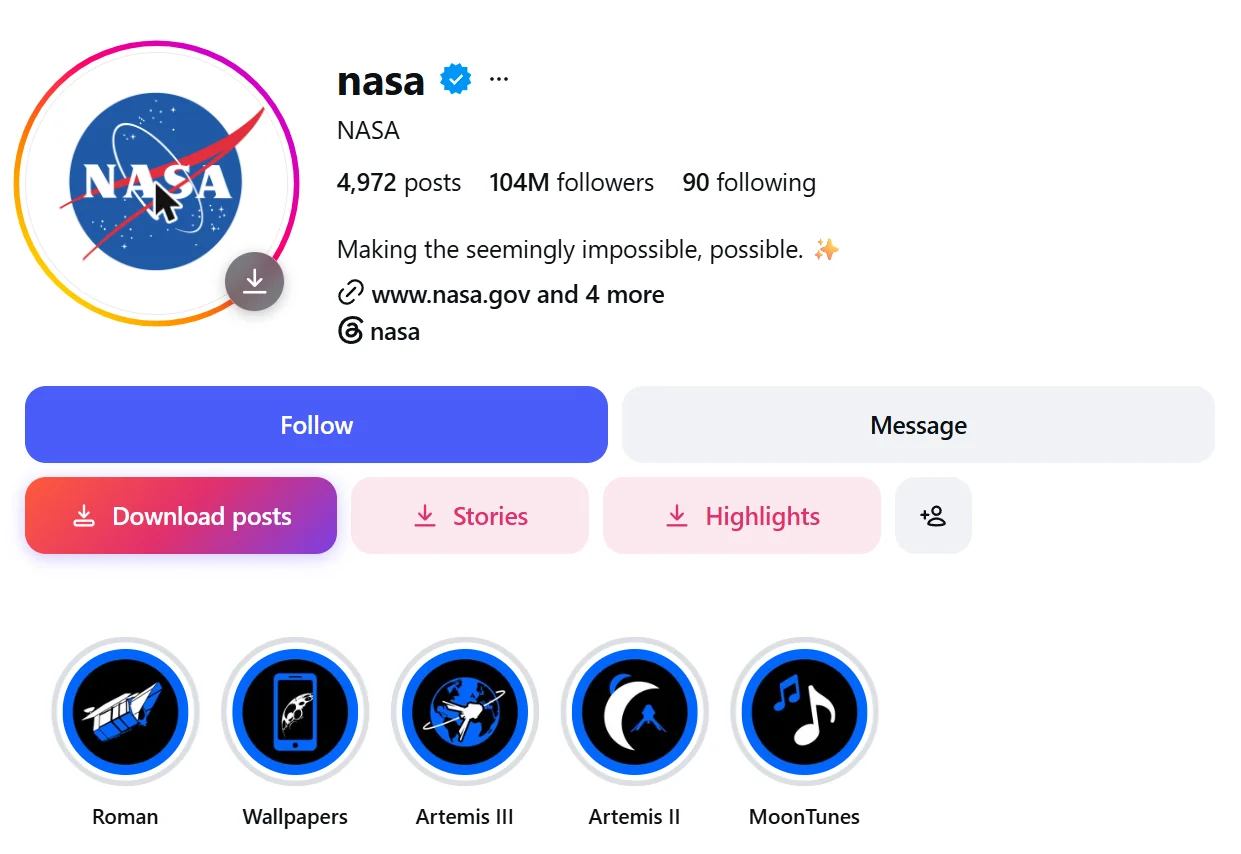 Kipzo’s buttons under a profile (NASA’s). Hovering the profile picture shows a download button on it, too.
Save just one highlight
- Open the highlight you want (click its circle under the profile bio).
- Click “Download highlight” at the top of the story viewer.
Kipzo saves that highlight’s photos and videos — all of them, not just the one on screen.
How the files are organized
Each highlight gets its own folder, named after the highlight’s title:
Downloads/
  Kipzo/
    nasa/
      Highlights/
        Artemis II/
        Moon Tunes/
Videos are saved in HD (1080p where Instagram has it). If a highlight has no title, its folder is called “Untitled”. You can change the main folder pattern in Kipzo’s settings — see organizing your downloads.
Running it again
Kipzo remembers what it already saved. If the account adds new stories to a highlight later, run Highlights again and only the new items are downloaded.
Highlights vs. stories
Current stories disappear after 24 hours; highlights stay until the owner removes them. To catch stories before they’re gone, see how to save Instagram stories.
Highlights belong to the account that posted them. Keep them for yourself and ask before sharing them anywhere else.