How to download every post from an Instagram profile
By the Kipzo team · Updated October 23, 2026
Saving a whole Instagram profile one post at a time takes forever. Here’s how to download every post — photos, videos, reels and every slide of every carousel — in one go.
What you need
- Google Chrome (or Edge, Brave, Opera or Vivaldi) on a computer.
- The free Kipzo extension.
- To be logged in to Instagram in that browser. Kipzo only saves what your account can already see.
Download a whole profile
- Open the profile on instagram.com.
- Click “Download posts” in the row under the profile name.
- Watch the progress panel in the corner: it shows how many posts were found and how many are saved.
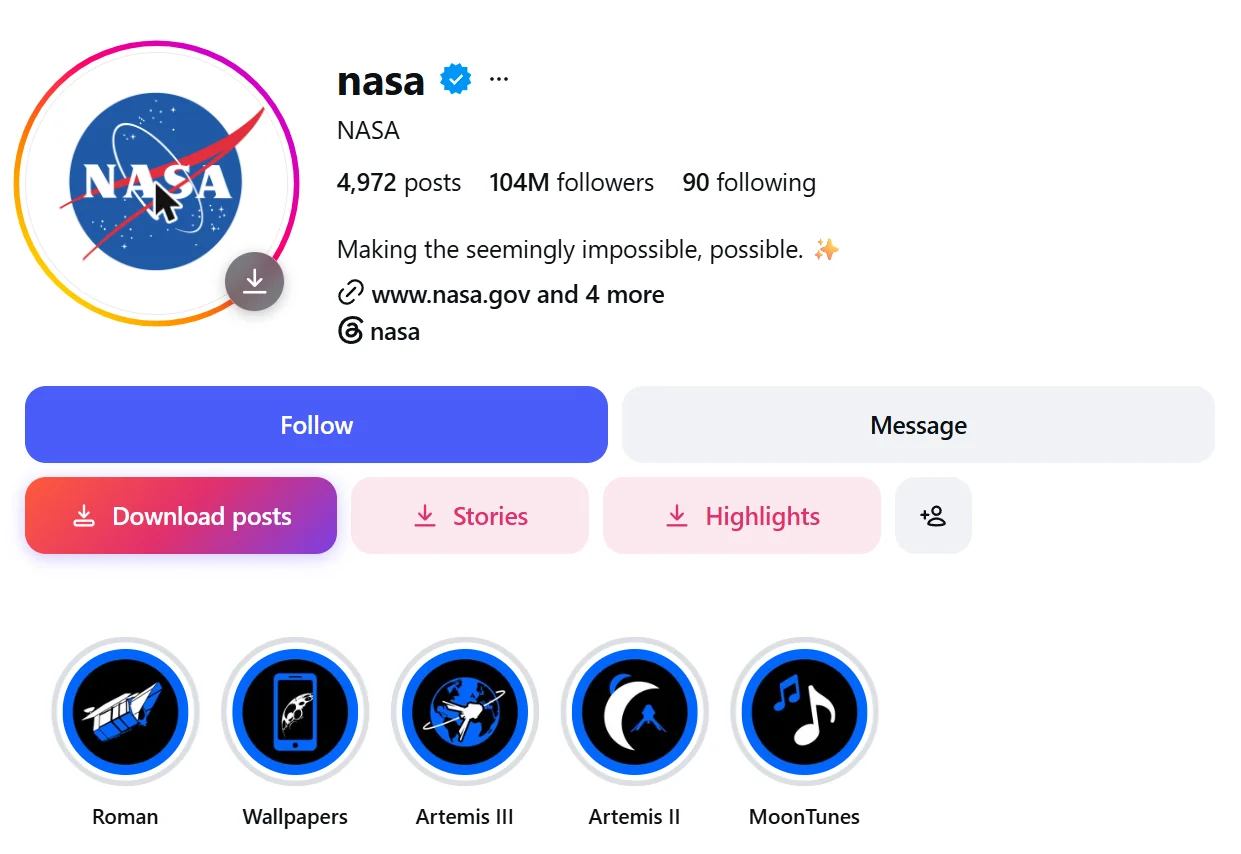 Kipzo’s buttons under a profile (NASA’s). Hovering the profile picture shows a download button on it, too.
Files go to your Downloads folder under Kipzo/<username>/. Videos are saved in HD (1080p where Instagram has it), and carousel slides are numbered in order: _01, _02, and so on.
Queue several profiles
You don’t have to wait for one profile to finish. Open another profile and click Download posts again — it joins the queue, and the panel shows each profile’s progress and the overall total.
Pause, resume and cancel
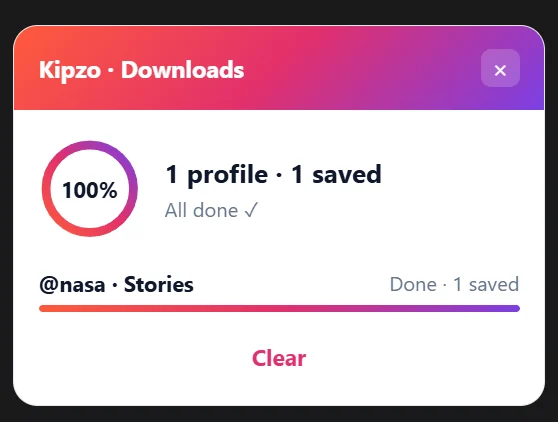 The progress panel in the corner of Instagram — here after saving NASA’s stories.
- Pause all / Cancel all at the bottom of the panel, or pause and cancel each profile on its own row.
- The same controls are in the toolbar: click the Kipzo icon → Downloads.
- Refreshing the page, browsing elsewhere or even restarting the browser doesn’t lose your place.
Re-runs only fetch new posts
Kipzo remembers what it already saved for each account. Run Download posts on the same profile a month later and it skips the old posts and saves only the new ones.
If Instagram asks you to slow down
Instagram limits how fast any account can load posts. If it says “slow down”, Kipzo waits and then carries on by itself — the panel shows “Instagram limit · retrying at …”. To make that less likely, raise Delay between items in Kipzo’s settings (0.4 to 4 seconds; the default is 1.5).
If the connection itself stalls, Kipzo retries that file later and moves on, and if nothing is getting through it waits for the connection to come back (“Connection stalled · retrying at …”).
Organize the files
By default each account gets its own folder. You can change the folder and file names — for example to sort by year — see how to organize your Instagram downloads.
Stories and highlights
Download posts covers the profile grid. If the account has a story or highlights, you’ll see Stories and Highlights buttons right next to it — see saving stories and downloading highlights.
Downloading someone’s whole profile is fine for your own archive, but the posts are theirs. Don’t re-upload them or use them commercially without permission.