How to download Instagram photos and every slide of a carousel
By the Kipzo team · Updated October 23, 2026
Carousel posts — the ones you swipe through — can hold up to 20 photos and videos. Taking screenshots of each slide loses quality, and most save tools only grab the slide you’re on. Here’s how to save all of them at once, at full size.
Save a whole carousel
- Install the free Kipzo extension in Chrome (or Edge, Brave, Opera, Vivaldi).
- Open the post on instagram.com.
- Click Kipzo’s download button — it sits in the post’s button row, next to the bookmark.
 On a post: Kipzo’s download arrow and music note sit in the button row, before the bookmark.
Every slide is saved, in order, whichever slide you were looking at.
Without opening the post
On a profile’s grid, hover over a post and click the small download button that appears on its thumbnail. Kipzo saves the whole post — every slide of a carousel — without opening it.
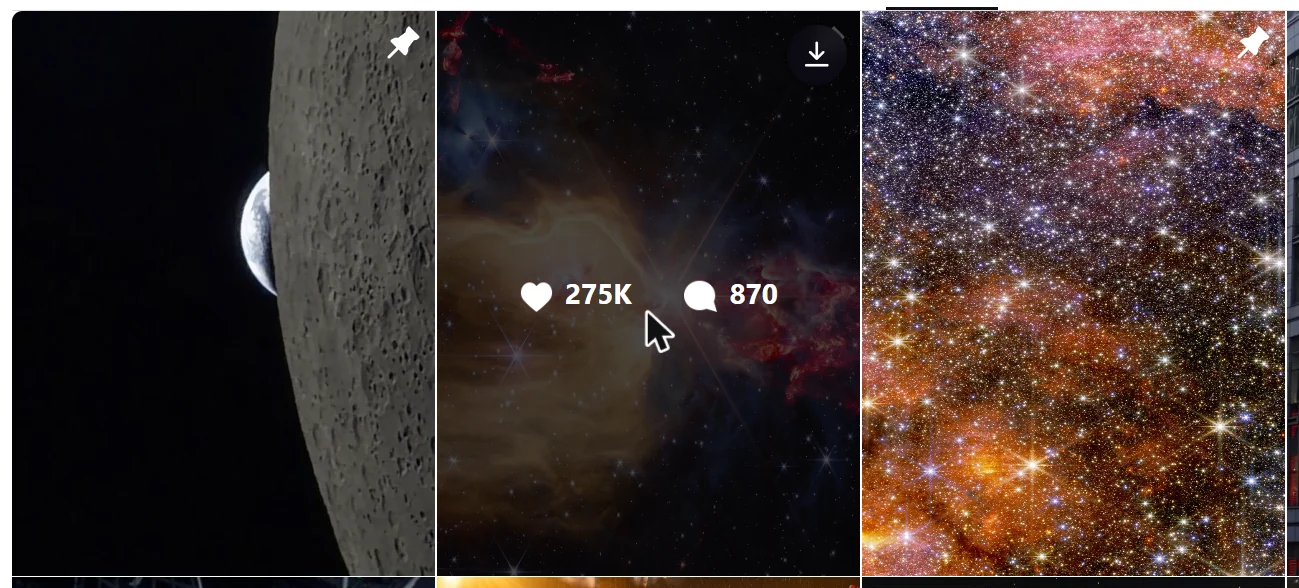 Hover a thumbnail on a profile grid and a download button appears in its corner. Handy when you want a few posts from a profile but not all of them. (For all of them, use Download posts.)
How the files are named
Slides keep their order with a number at the end:
nasa_3412875011834_01.jpg
nasa_3412875011834_02.jpg
nasa_3412875011834_03.mp4
The middle part is the post’s ID, so the slides of one post stay together and never clash with another post. You can change the pattern — for example to start with the date — in Kipzo’s settings; see organizing your downloads.
Quality
- Photos are saved as the largest JPG Instagram stores — in our tests between 1080 × 1350 and 2000 × 1872 pixels, depending on how the post was uploaded.
- Videos in a carousel get the same HD treatment as reels: 1080p with sound where Instagram has it. See why most downloads are 720p.
Photos belong to whoever took them. Keep saved posts for your own use, and credit or ask the owner before sharing.